How to Convert a Bank Statement to Excel (and Check the Result Before You Trust It)
Getting a bank statement into Excel sounds like a five-minute job until you try it. Copy a PDF table into a spreadsheet and you usually get dates stored as text, amounts with stray currency symbols, and descriptions split across two rows. Nothing sorts properly and SUM returns zero.
This guide compares the practical ways to convert a bank statement to Excel, explains when each one works, and ends with a short checklist for verifying the spreadsheet against the original statement. That last part matters most: a converted file is a working copy, and the bank-issued statement stays the record of truth.
Start by asking your bank for CSV
The cleanest bank statement to Excel route often skips the PDF entirely. Many online banking portals let you download transactions as CSV, and some offer Excel or accounting formats such as OFX or QBO.
A bank export has two advantages. The data comes straight from the bank’s system, so there is no parsing step to get wrong, and dates and amounts usually arrive in consistent formats. Open the CSV in Excel, check the date format, and you are mostly done.
The catch is coverage. Some banks only offer CSV for the last few months, older statements may exist only as PDFs, and an accountant may hand you PDFs rather than portal access. That’s when you need one of the PDF routes below.
Option 1: Copy and paste (fine for one short statement)
For a single page with a handful of transactions, copy and paste is acceptable. Select the table in your PDF reader, paste it into Excel, and clean up.
Expect to fix:
- Dates that paste as text, which won’t sort chronologically
- Amounts with currency symbols, thousands separators or trailing minus signs
- Descriptions that wrap onto a second line and become a separate row
- Check or reference numbers that lose their leading zeros
Text to Columns, DATEVALUE and a find-and-replace on currency symbols handle most of it. Beyond a page or two, the cleanup takes longer than the conversion is worth.
Option 2: Excel’s built-in PDF import
Excel for Microsoft 365 on Windows can import tables from a PDF through Data → Get Data → From File → From PDF. Power Query detects the tables on each page and lets you choose which to load.
It works well when the statement has a clear, consistent table on every page. You can combine pages, set column types and save the steps, so next month’s statement goes through the same transformation.
It struggles with statements where the layout shifts between pages, headers repeat mid-table, or one transaction spans several lines. You still need to set column types yourself, and the feature isn’t available in every Excel edition, so check yours before planning a workflow around it.
Option 3: A dedicated bank statement to Excel converter
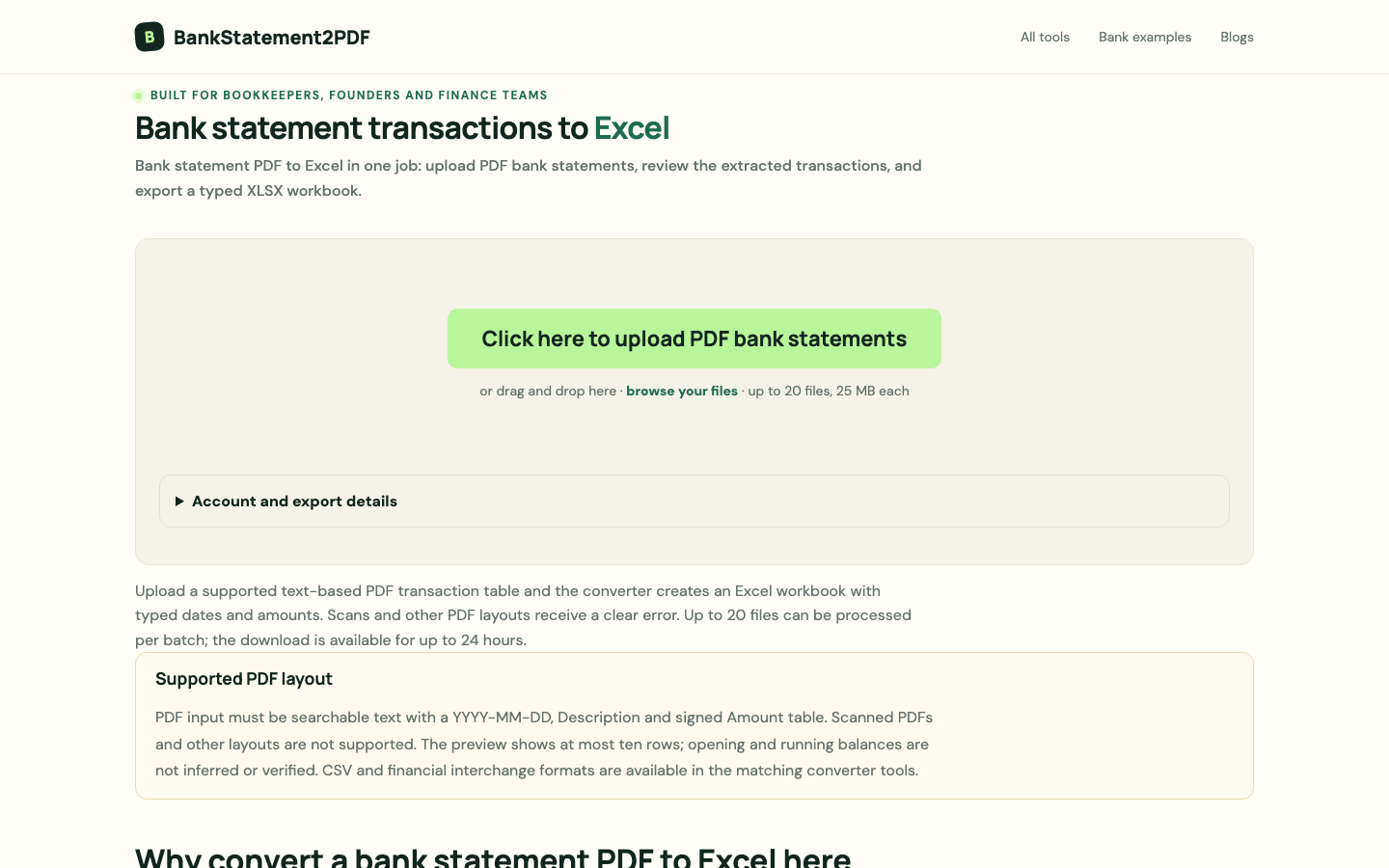
A purpose-built converter is the faster route when you have several PDFs in a supported format. You upload the files, review the parsed transactions and download a workbook in which dates and amounts are already proper cell types.
One example is the free bank statement to Excel converter on BankStatement2PDF. A few things set it apart:
- Typed cells: dates are written as Excel dates, amounts as numbers, and check numbers as text so leading zeros survive.
- Debit, Credit and signed Amount columns are all included, derived from the statement’s signed amount.
- Batches: up to 20 PDFs (25 MB each) per job, with the source filename on every row so you can trace transactions back.
- A summary sheet with transaction counts and money in, money out and net totals by account and currency.
- Short retention: uploaded PDFs are removed after the job is created, and download links expire after 24 hours.
It is also deliberately strict, and that’s worth knowing before you upload. It only accepts searchable (text-based) PDFs whose transaction table uses a YYYY-MM-DD date, a description and a signed amount. Scanned or photographed statements aren’t supported, other layouts are rejected rather than guessed at, and it doesn’t infer or reconcile opening and closing balances. If your statement doesn’t match, the bank’s CSV export plus the site’s bank statement to CSV and other converters may be a better fit.
That strictness is a reasonable trade-off. A converter that guesses at unfamiliar layouts can quietly produce wrong rows, which is worse than an error message.
How to check a converted bank statement in Excel
Whichever method you use, run these checks before the spreadsheet goes into bookkeeping, a loan application or a tax file.
- Dates sort as dates. Sort the date column oldest to newest. If March lands before January, some cells are still text.
- Amounts are numbers. Select the amount column and look at the status bar. If Excel shows a
Countbut noSum, the values are text. - Totals match the statement. Compare total money in and money out with the figures printed on the statement for the same period.
- The balance ties out. Opening balance plus net movement should equal the closing balance on the statement. Do this yourself if your tool doesn’t.
- Row count matches. Spot-check the number of transactions on a page or two, and look for duplicates where statement periods overlap.
- References kept their zeros. Check numbers and references should be text, so
000123doesn’t become123.
If any check fails, fix the source of the problem rather than editing totals by hand. A spreadsheet that has been adjusted to match is hard to trust later.
A note on privacy
Bank statements contain account numbers, names and spending history. Before uploading to any online tool, read how long files are kept and whether they are deleted after processing. For very sensitive accounts, a bank CSV export or Excel’s local PDF import keeps everything on your own machine.
FAQ
Can I convert a scanned bank statement to Excel?
Scanned statements are images, so they need OCR (optical character recognition) first. Many converters, including strict parsers, don’t support scans. Downloading a digital statement or a CSV export from your bank is usually more accurate than OCR.
Why won’t my bank statement dates sort in Excel?
They were pasted or imported as text. Convert them with DATEVALUE or Text to Columns, and make sure the day and month order matches the statement’s format.
Is it safe to convert bank statements online?
It depends on the tool. Look for clear retention rules, such as files deleted after processing and download links that expire, and avoid tools that don’t explain what happens to your uploads.
Conclusion
The best way to convert a bank statement to Excel depends on what you start with. A bank CSV export is the cleanest source; copy and paste works for one short page; Excel’s PDF import suits consistent layouts; and a dedicated tool like the bank statement to Excel converter saves time on batches of supported PDFs. Whatever route you take, check dates, amounts, totals and balances against the original before you rely on the spreadsheet.